Radius is your all-in-one platform for making international payments with ease, whether you are paying school fees abroad, covering visa costs, or settling exam registrations. This guide walks you through everything you need to get started: how to add money to your Radius wallet and use it to make any payment available on the platform.

Before you can make any payment on Radius, your wallet needs to have sufficient funds. The process is simple. Radius provides you with a unique account number that you can use to transfer money directly from your personal bank account or mobile money (MoMo) account. Once the funds arrive, they are ready to use instantly.
This guide covers all available payment types on the platform, with clear, step-by-step instructions for each one. Whether this is your first time using Radius or you simply need a refresher, you will find everything you need right here.
|
Step 1 — Fund Your Wallet |
To get started, open the Radius app and tap Deposit on the home screen. You will be taken to the Add Money screen, where you will see a unique account number for your wallet. Copy this account number and use it to initiate a transfer from your personal bank account or MoMo account. Once the transaction is processed, the funds will reflect in your Radius wallet, and you will be ready to make payments.
Note: Only send money from your personal bank account or MoMo account. Transfers from third-party accounts may not be accepted.
|
Quick Actions |
Once your wallet is funded, navigate to the home screen to access the platform's Quick Actions. These are your shortcuts to everything Radius offers:
-
Make a Payment
-
Sevis Fee
-
Study Abroad
-
Opportunities
-
Community
-
Help & Support
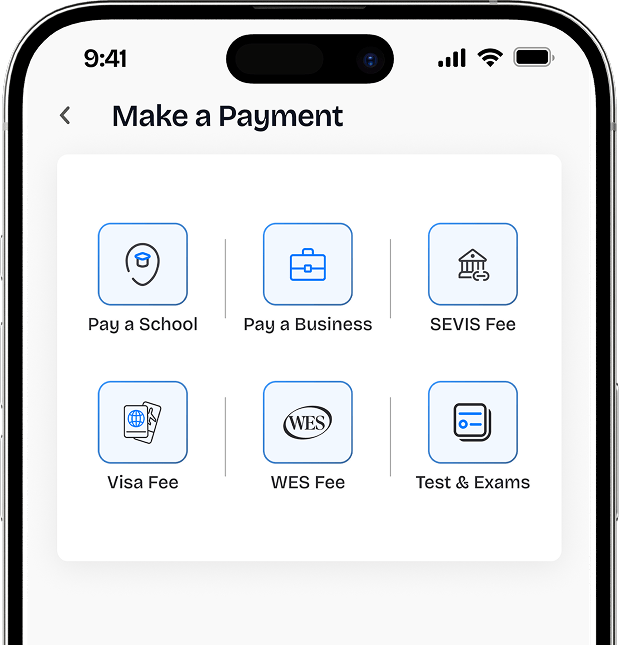
To initiate a payment, tap any of the following: Make a Payment, SEVIS Fee, or Study Abroad. Each option will guide you through the relevant payment flow.
|
Payment Types |
Radius supports a wide range of international payment categories. Below is a detailed guide to completing each type of payment.
Pay a School (Tuition, Application Fees & School Fees)
This option is designed for students making tuition or application fee payments to universities and colleges abroad. Follow these steps to complete your payment:
-
Select the country where your institution is located.
-
Choose your college or university from the list.
-
Indicate the type of payment, for example, tuition, application fees, or acceptance deposits.
-
Select your preferred currency and enter the exact payment amount, then tap Continue.
-
Review all transaction details on the Payment Review screen, then tap Complete Payment to finalize.
Pay a Business
Use this option to send payments to registered companies and organizations on the Radius platform. The process is quick and straightforward:
-
Browse or search for the company you wish to pay and select it from the list.
-
Tap Continue, then input the amount you would like to send.
-
Tap Complete Payment. The transaction typically processes within moments.
How to Pay for Tests & Exams
Radius makes it easy to pay for standardized tests and international examinations directly from your wallet. Here is how:
-
Type the name of the test or exam you are registering for in the search field.
-
Select it from the list, enter the required payment amount, and complete the transaction.
-
If your exam is not listed, reach out to the Radius support team, and they will assist in adding it.
How to Pay for the Visa Fee
When paying a visa application fee through Radius, you will be guided through a few simple steps. Always confirm the exact fee amount with the relevant embassy or consulate before submitting.
-
Select the country for which you are applying.
-
Choose the specific visa type relevant to your application.
-
Enter the applicable fee amount and tap Complete Payment.
How to Pay the WES Fee
To pay your World Education Services (WES) credential evaluation fee, cross-check the amount on the WES website before proceeding to ensure accuracy.
-
Select your preferred currency for the transaction.
-
Enter the payment amount as stated by WES for your specific evaluation type.
-
Tap Complete Payment to finalize.
How to Pay for the UK IHS Fee
The UK Immigration Health Surcharge (IHS) is required for most visa applications to the United Kingdom. Ensure the amount entered matches the figure calculated on the official UK Visas and Immigration website before proceeding.
-
Enter the total surcharge amount applicable to your visa type and length of stay.
-
Tap Continue, then provide the additional information requested.
-
Review your details and tap Complete Payment to finalize.
How to Pay for the SEVIS Fee
The SEVIS I-901 fee is a mandatory payment for international students travelling to the United States on an F, M, or J visa. This payment requires a preparatory step outside of Radius before you can proceed. Follow the instructions below carefully.
Before opening the Radius app, complete the following:
-
Visit fmjfee.com and click on Pay I-901 Fee to initiate your SEVIS payment on that platform.
-
Download the Western Union SEVIS payment coupon that is generated for you. This document is required to complete your payment on Radius.
Once you have your coupon ready, return to the Radius app and do the following:
-
Tap the Sevis Fee from the Quick Actions menu.
-
Select your SEVIS type: F, M, or J.
-
Upload the Western Union coupon you downloaded.
-
Proceed to make the payment and complete the transaction.
Note: Do not attempt to make this payment without your Western Union SEVIS coupon. The coupon is required for the transaction to be processed successfully.